
Table of contents
- Table of contents
- How to sign in
- How to use Lunisolar Calendar at the main interface
- How to create events
- How to manage the event list
- How to edit an event
- How to create reminders
- How to edit a reminder
- Other notices
- User guides for the Vietnamese version
How to sign in
Apart from checking calendars, almost all features of the Lunisolar Calendar app such as creating event, editing event, creating reminder, or editing reminder... require users to sign in first. So users shall sign in as guided here to make the most of this app.
How to use Lunisolar Calendar at the main interface
All users can access the Lunisolar Calendar app with the following addresses:
- Full link: hahtech.online/lunisolar-calendar-calculate-lunar-calendar-like-vietnamese-or-chinese-based-on-your-own-timezone
- Short link: hahtech.online/lunisolarcalendar
How to use the selector panel
Users can select a month to check the month calendar, or select a specific day to check the day calendar, with the panel of selectors as below:
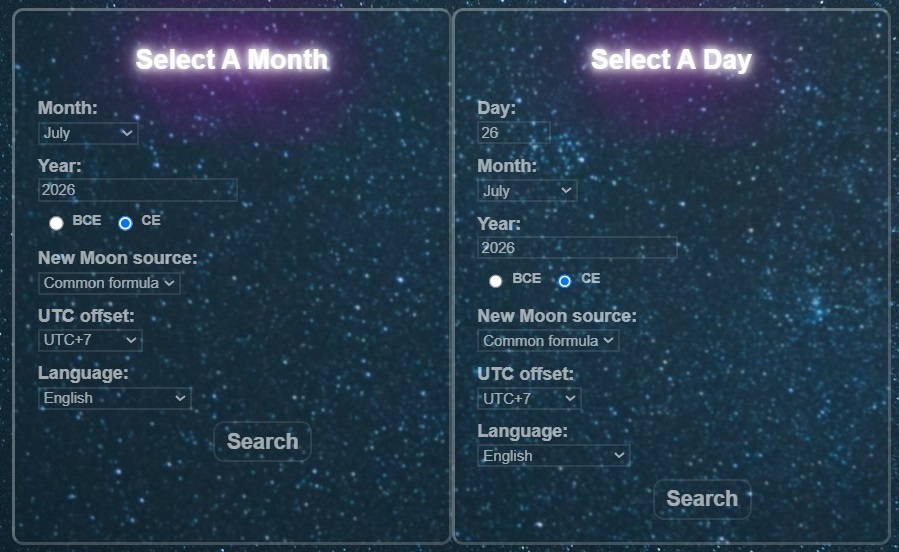
There are some requirements for inputs as follows:
- Day (if you select a day): It has to be a positive integer not greater than the maximum day of a particular month (28, 29, 30, or 31)
- Month: It is from January to December
- Year: It has to be a positive integer. If you are willing to look up a Before Common Era year, do select the BCE option below
- BCE or CE: It is the option for Before Common Era or Common Era
- New Moon soure: It is the data source for New Moon moments. This option will be explained more detail here
- UTC offset: It is your timezone's time offset. For example, Vietnamese use UTC+7
- Language: Your calendar will use the chosen language, and display just events saved in that language. The default language is English
How to use the month calendar interface
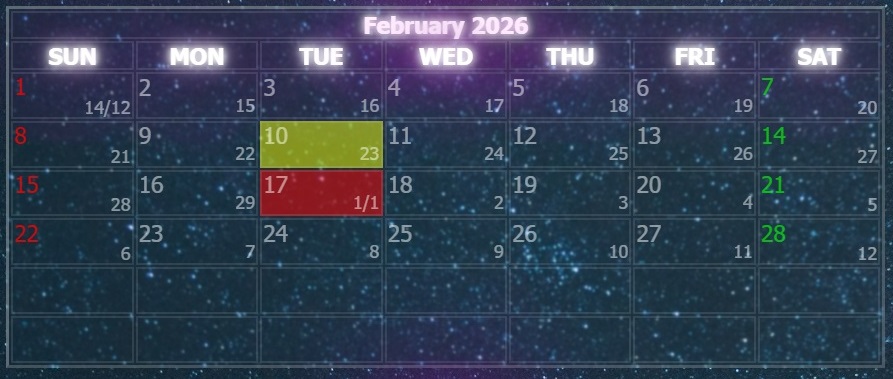
In the month calendar interface, if a day cell has a coloured background, it means that day has at least an event:
- Red background: The day is New Year's Day or Lunar New Year's Day
- Purple background: The day has at least a private event
- Yellow background: The day has at least a public event
Users can click a day cell to check that day in the detailed day calendar.
How to use the day calendar interface
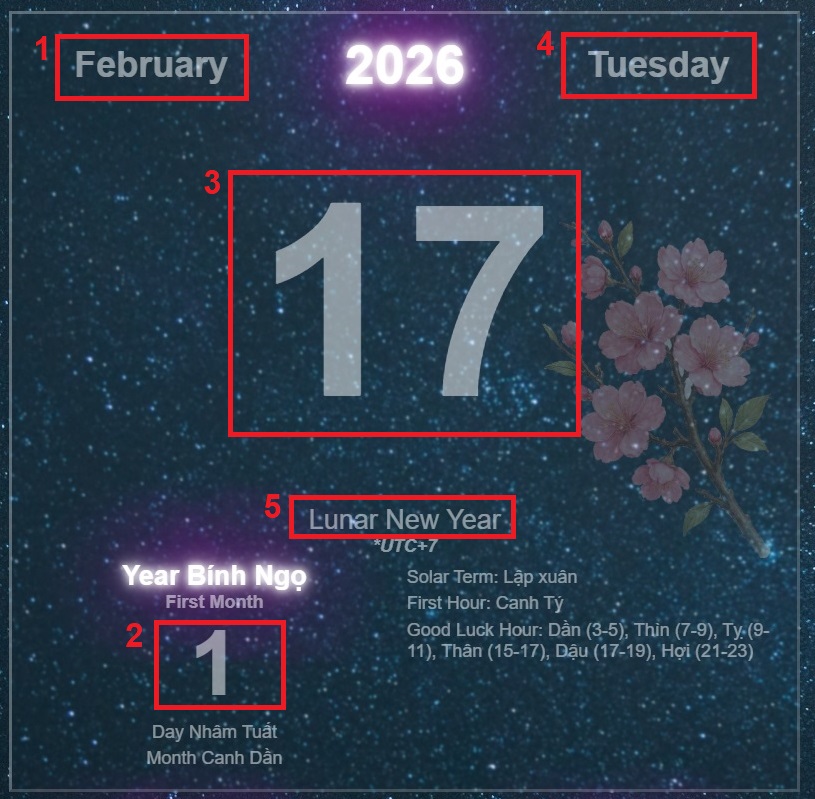
In the day calendar interface, there are several zones that users can interact with:
- Zone 1 - The solar month: Users click there to check that month's calendar
- Zone 2 - The lunar day: Users double click there to create an event with some preset inputs according to that lunar day
- Zone 3 - The solar day: Users double click there to create an event with some preset inputs according to that solar day
- Zone 4 - The weekday: Users double click there to create an event with some preset inputs according to that weekday
- Zone 5 - The event: Users click there for another event to be displayed if there is any
How to create events
There are different types of event, each one requires some different inputs and they also share common inputs. Users should understand all types to make the most of this feature.
Explain different types of event
-
Lunisolar calendar's own inputs:
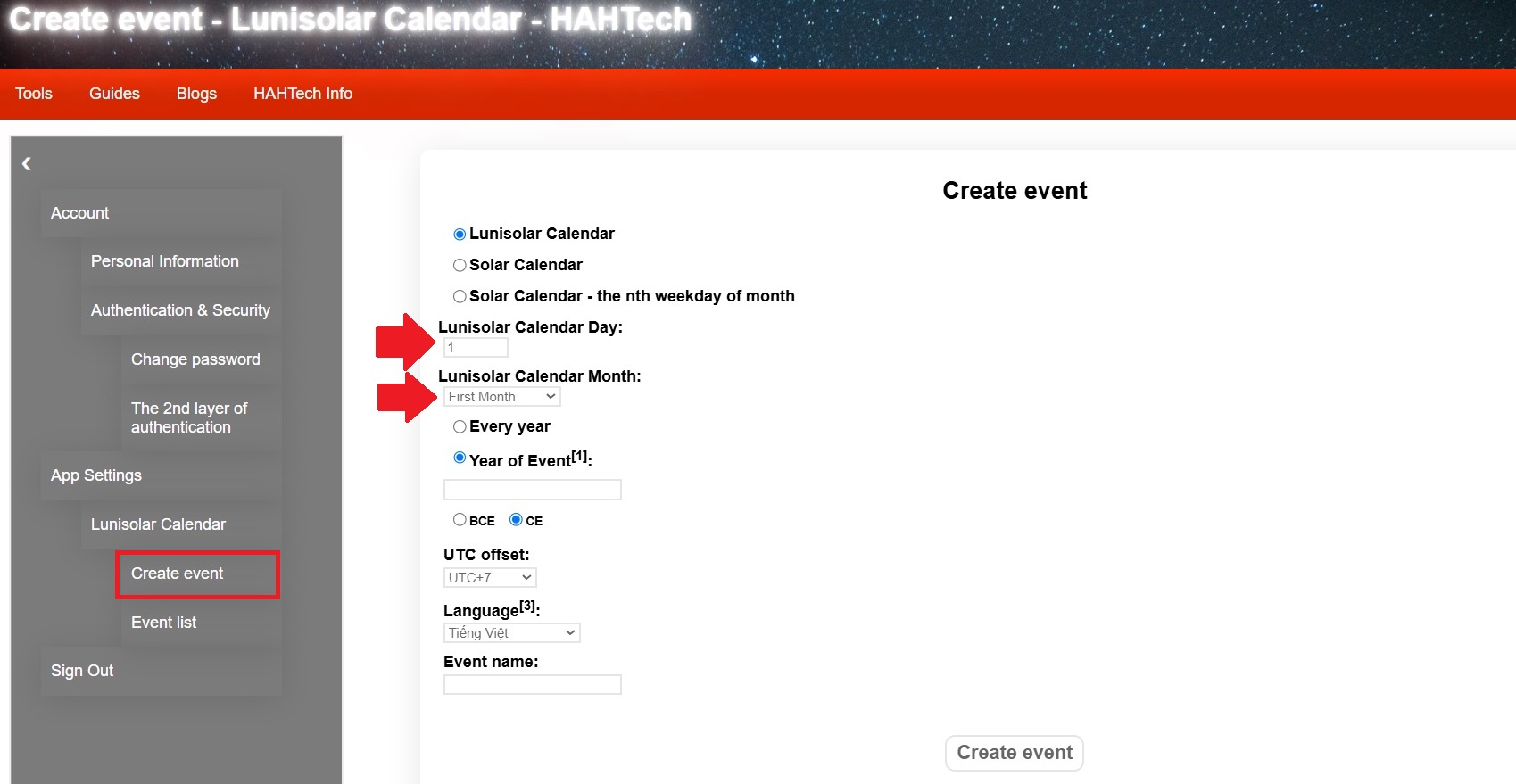
- Lunisolar Calendar Day: It has to be a positive integer from 1 to 30
- Lunisolar Calendar Month: There are options from 1st lunar month to 12th lunar month, plus an option for every lunar month
-
Solar calendar's own inputs:
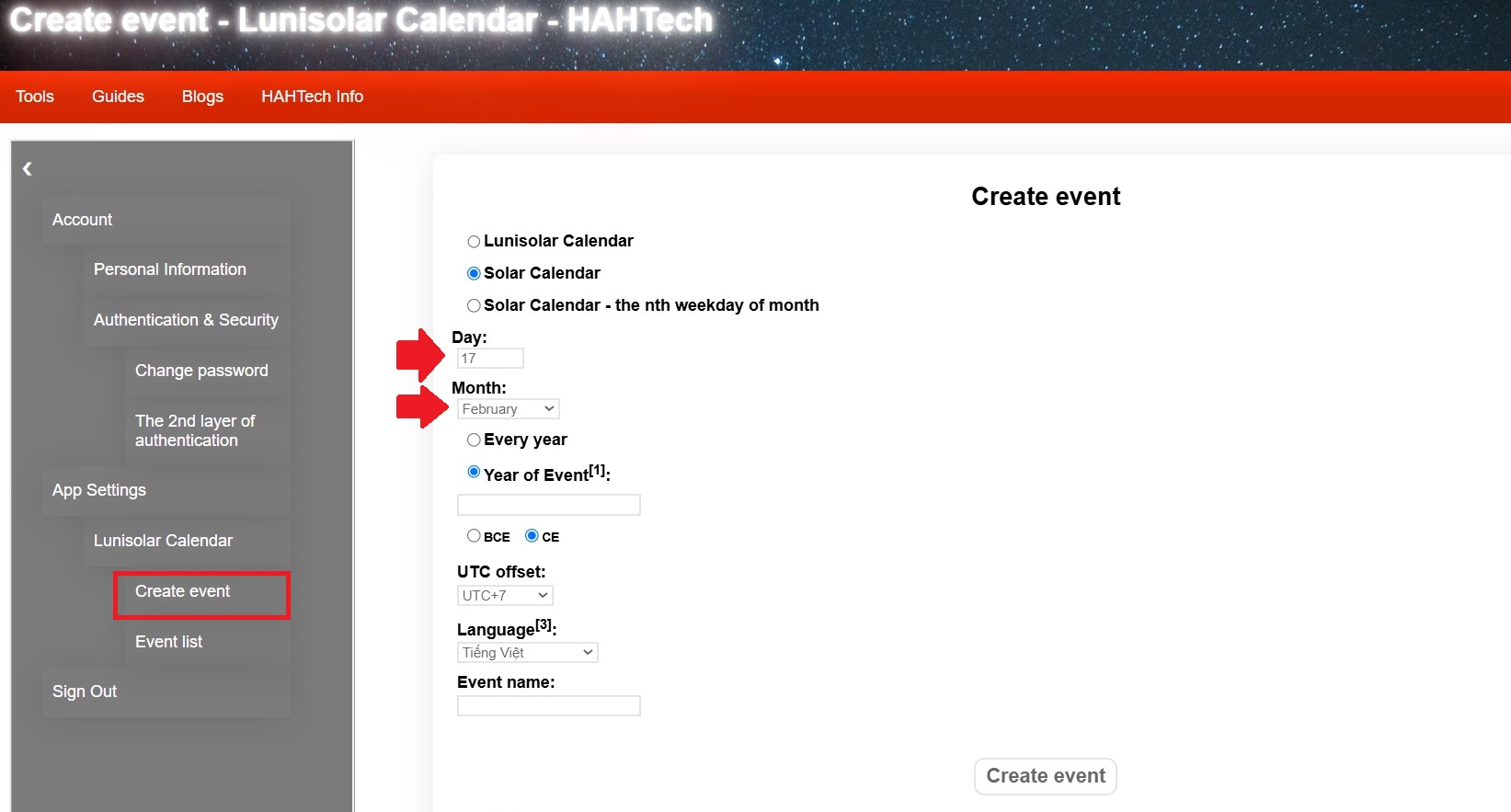
- Day: It has to be a positive integer from 1 to 31
- Month: There are options from January to December, plus an option for every month
-
"The nth weekday of month" calendar's own inputs:
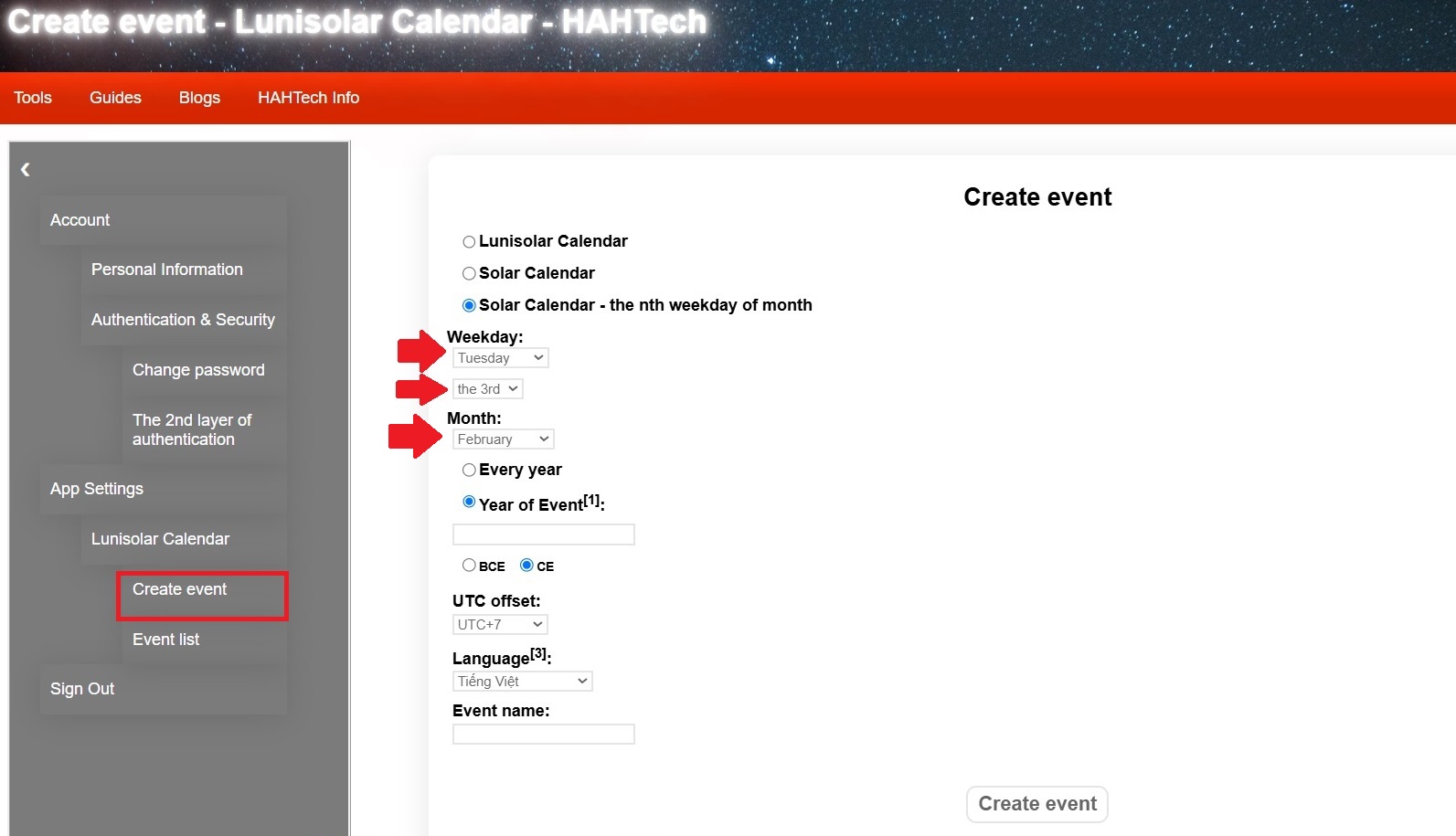
- Weekday: There are options from Sunday to Saturday, alongside with options for the first to the last weekday. For example: the last Sunday, the 4th Thursday...
- Month: There are options from January to December, plus an option for every month
-
Common inputs:
- "Every year" or a specific "Year of Event": Users can tick the "Every year" option, or otherwise tick the "Year of Event" option and input a specific year. In general, a Year has to be a positive integer. If you are willing to input a Before Common Era year, let's select the BCE option
- UTC offset: It's the timezone's time offset to be assigned for the event
- Language: It's the language to be assigned for the event. Events will be displayed only when users check calendar with the same language
- Event name: It's a string with a maxium of 30 characters
Steps for creating an event
Step 1: Users go to the "Settings" page as guided here and choose "Create event" in the "Lunisolar Calendar" category of the settings menu, or directly access hahtech.online/lunisolar-calendar-create-event.
Or user can start creating an event with some preset inputs as guided in the section of "How to use the day calendar interface".
Step 2: Fill all the required inputs, and then click the "Create event" button.
How to manage the event list
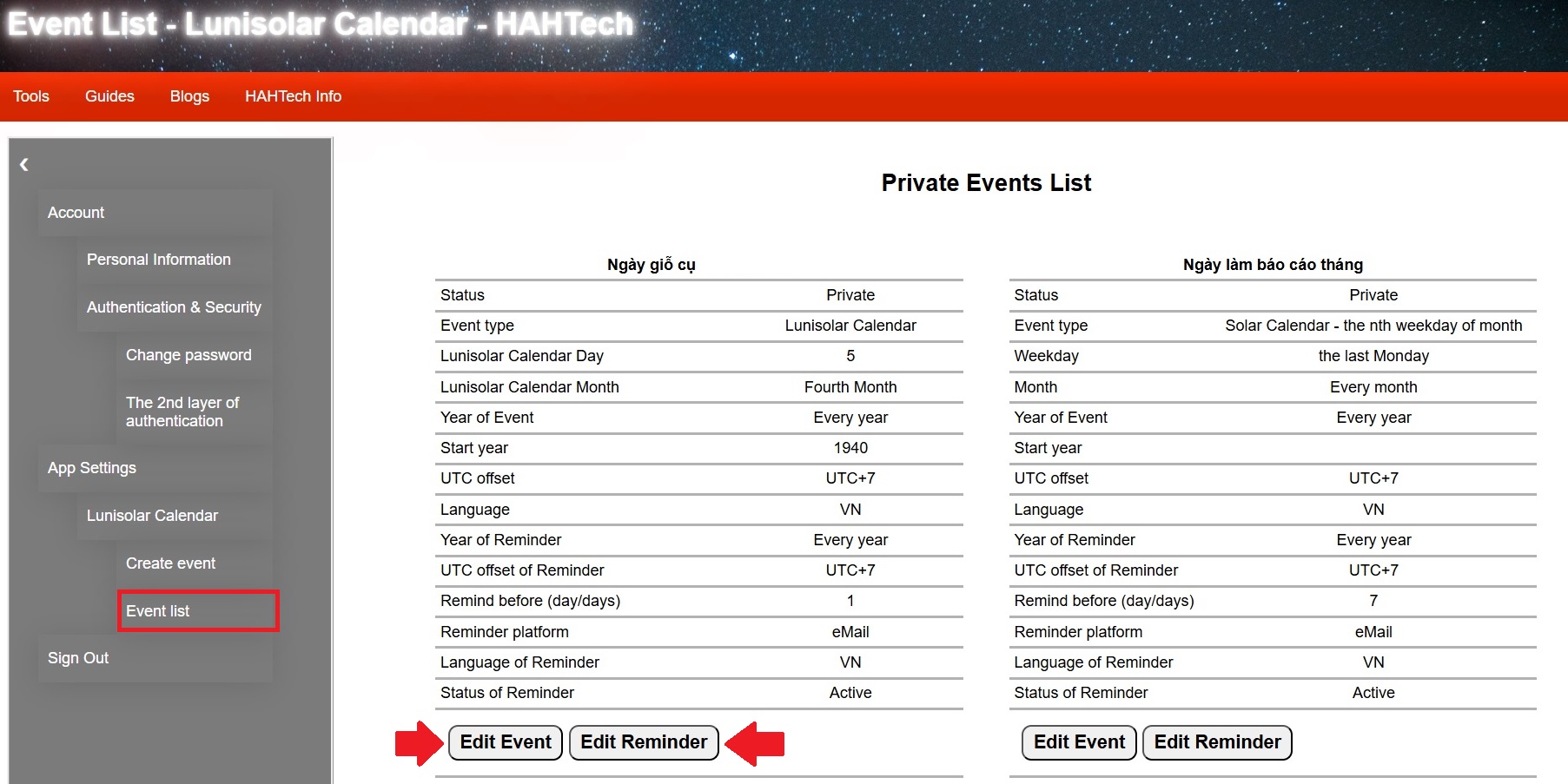
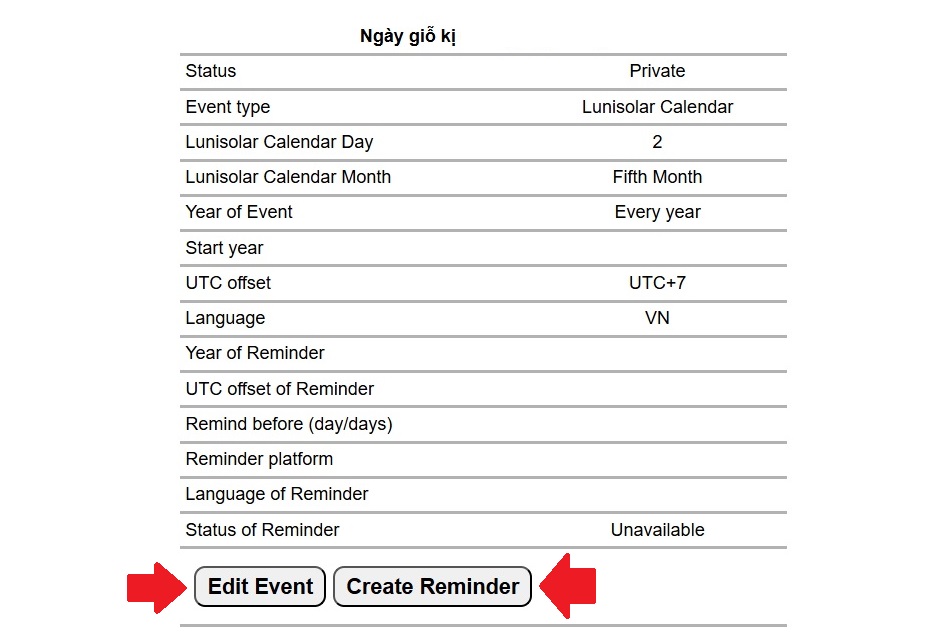
Users go to the "Settings" page as guided here and choose "Event list" in the "Lunisolar Calendar" category of the settings menu, or directly access hahtech.online/lunisolar-calendar-event-list.
Each event will have an "Edit Event" button. Each event also has a "Create Reminder" button if it hasn't had any reminder yet, or an "Edit Reminder" button if it already had one.
How to edit an event
Step 1: Users go to the "Event List" page as guided here.
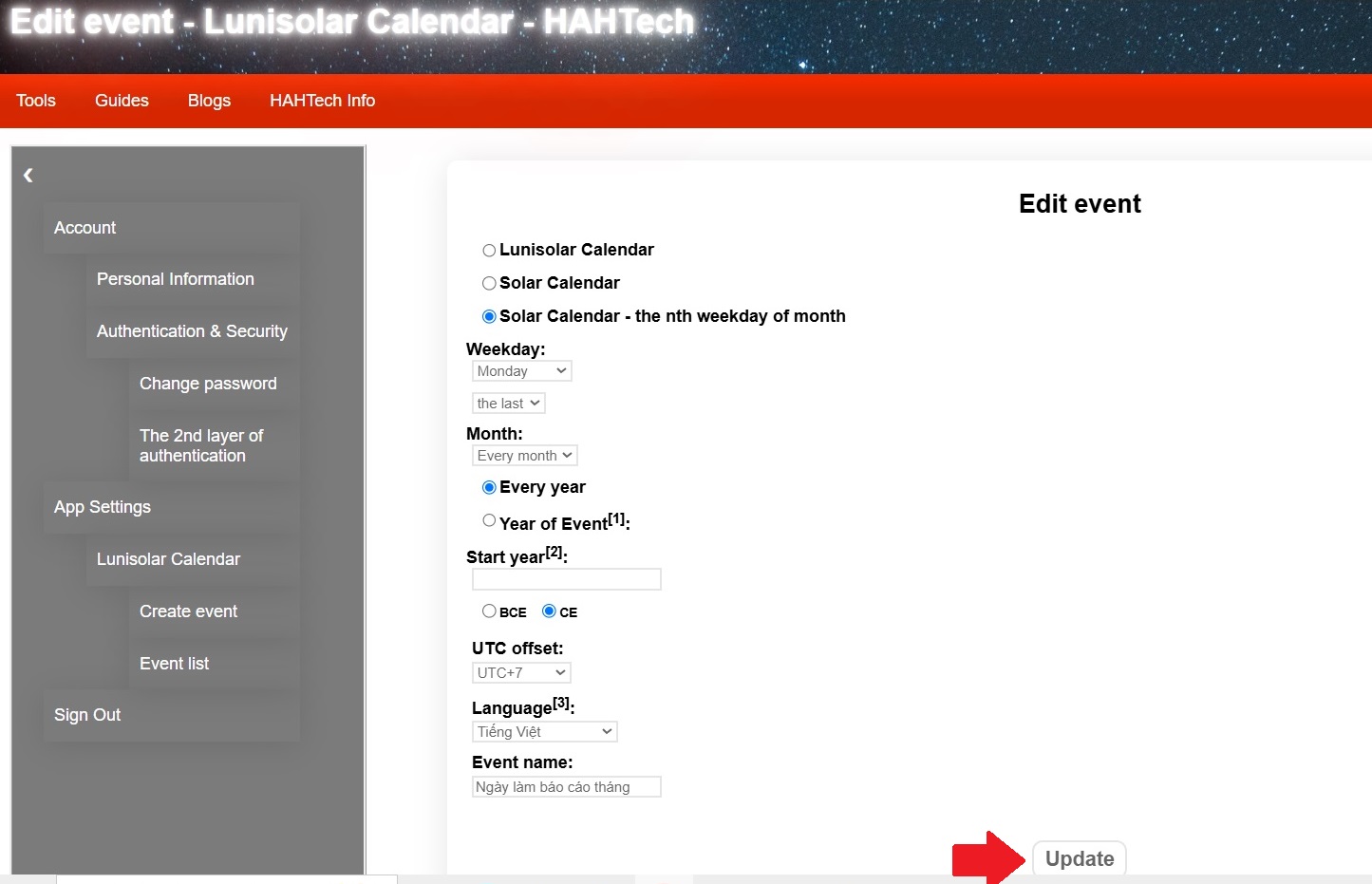
Step 2: Find the event you want to edit, and then click the corresponding "Edit Event" button.
Step 3: Update all the inputs you want, but still notice all the requirements mentioned in the section of "Explain different types of event". Finally, you click the "Update" button to finish.
How to create reminders
Step 1: Users go to the "Event List" page as guided here.
Step 2: Find the event you want to create a reminder for, and then click the corresponding "Create Reminder" button.
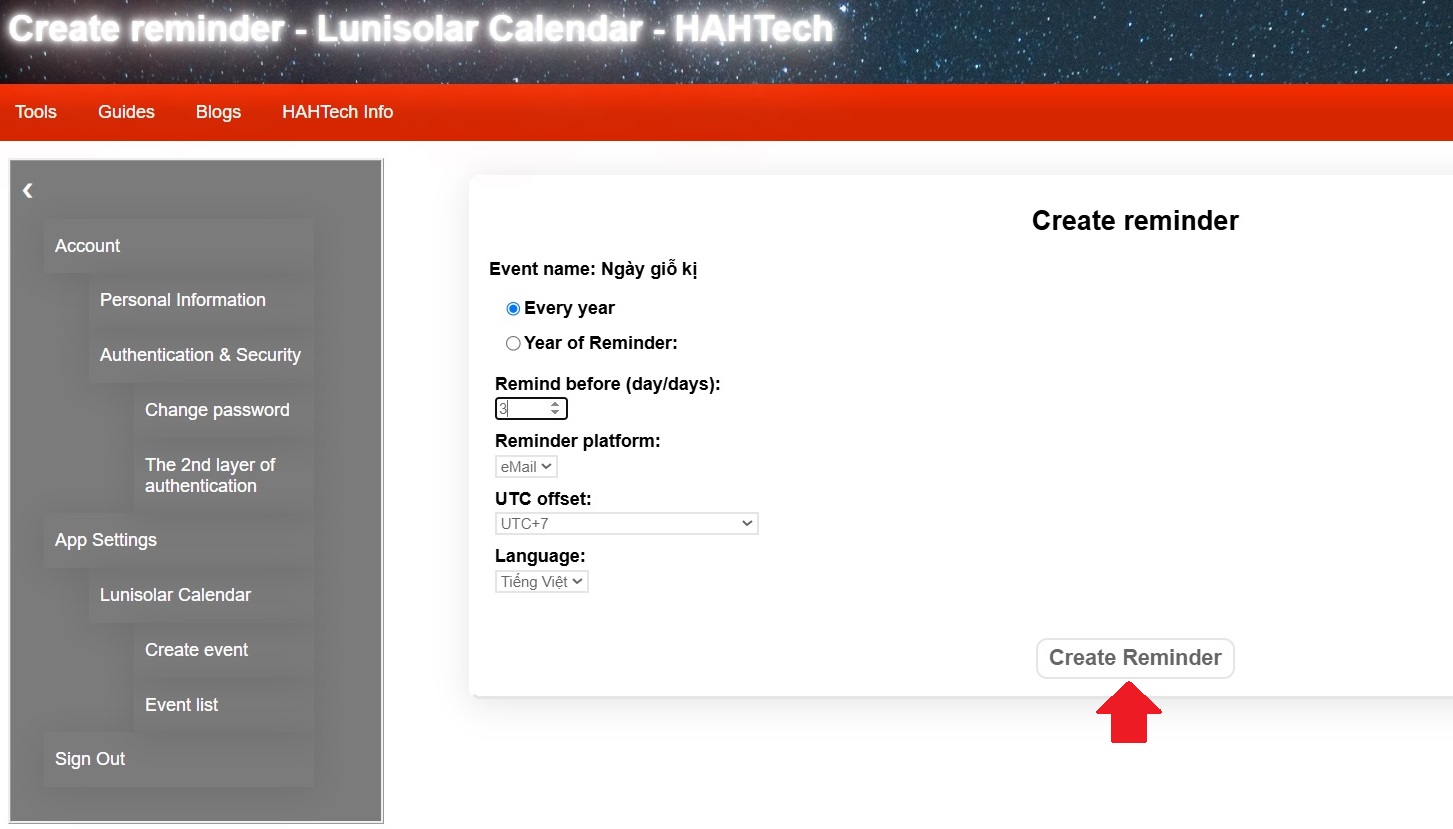
Step 3: Fill the inputs, noticing the requirements as follows:
- "Every year" or a specific "Year of Reminder": Users can tick the "Every year" option, or otherwise tick the "Year of Reminder" option and input a specific year. In general, a Year has to be a positive integer. If you are willing to input a Before Common Era year, let's select the BCE option
- Remind before: The number of days that an user need to be reminded in advance for the event. It has to be a positive integer from 1 to 30
- Reminder platform: The platform on which the reminder will be sent. At this moment, there is only one option that is "eMail", but the Lunisolar Calendar will try to add more.
- UTC offset: It's the timezone's time offset to be assigned for the reminder. The reminder will be sent at 9:00 AM on the assigned day according to that time offset
- Language: It's the language to be assigned for the reminder. The reminder will be sent in that language
Finally, let's click the "Create Reminder" button to make it happen.
How to edit a reminder
Step 1: Users go to the "Event List" page as guided here.
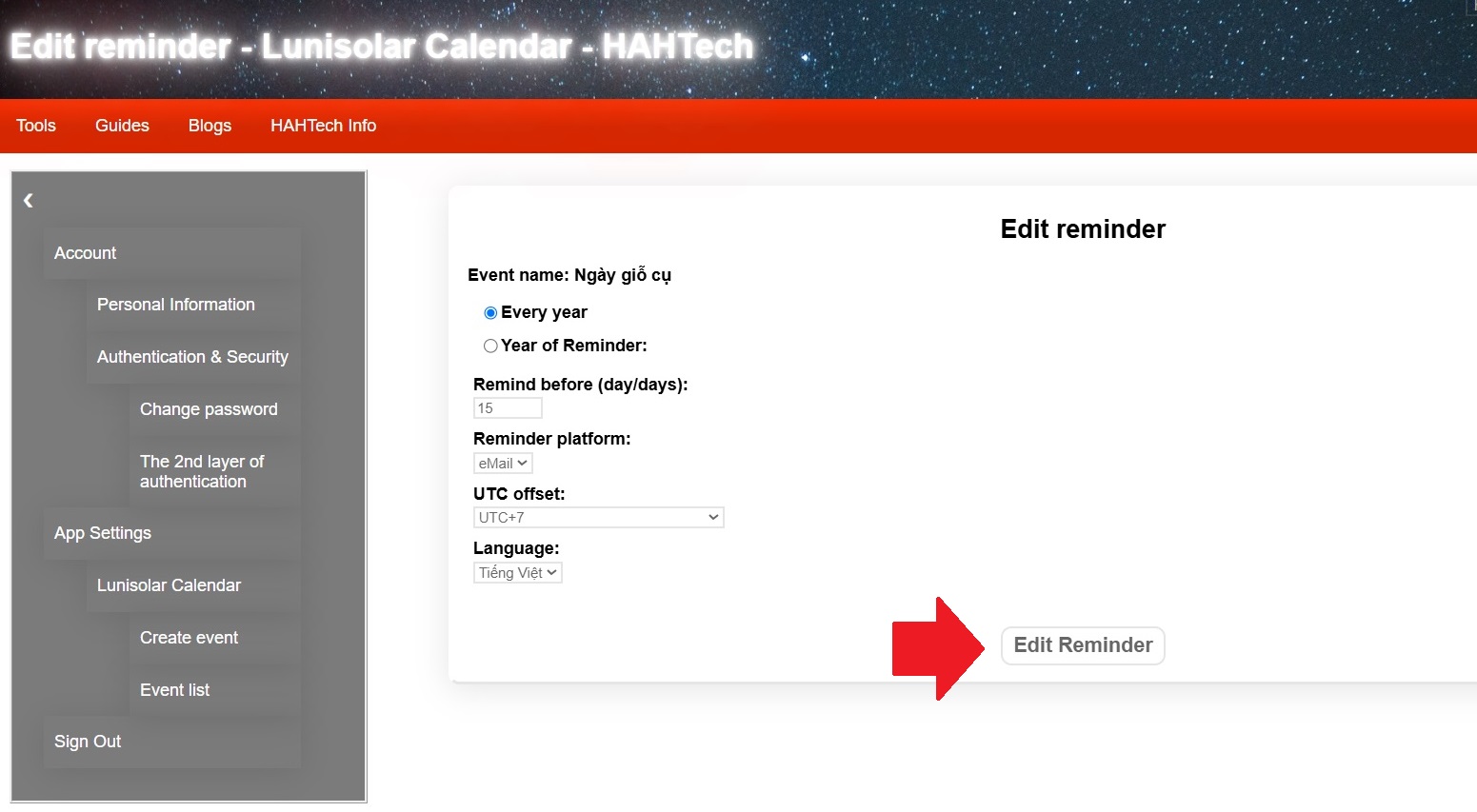
Step 2: Find the event you want to edit its reminder, and then click the corresponding "Edit Reminder" button.
Step 3: Update all the inputs you want, but still notice all the requirements mentioned in the section of "How to create reminders". Finally, you click the "Edit Reminder" button to finish.
Other notices
At this moment, each user can create 20 events for free, alongside with 20 free reminders although the maximum number of monthly reminder is 3.