Table of contents
- Table of contents
- How to choose language versions
- How to sign up
- How to sign in
- How to navigate in "Settings"
- How to change password
- How to sign out
- User guides in Vietnamese
How to choose language versions
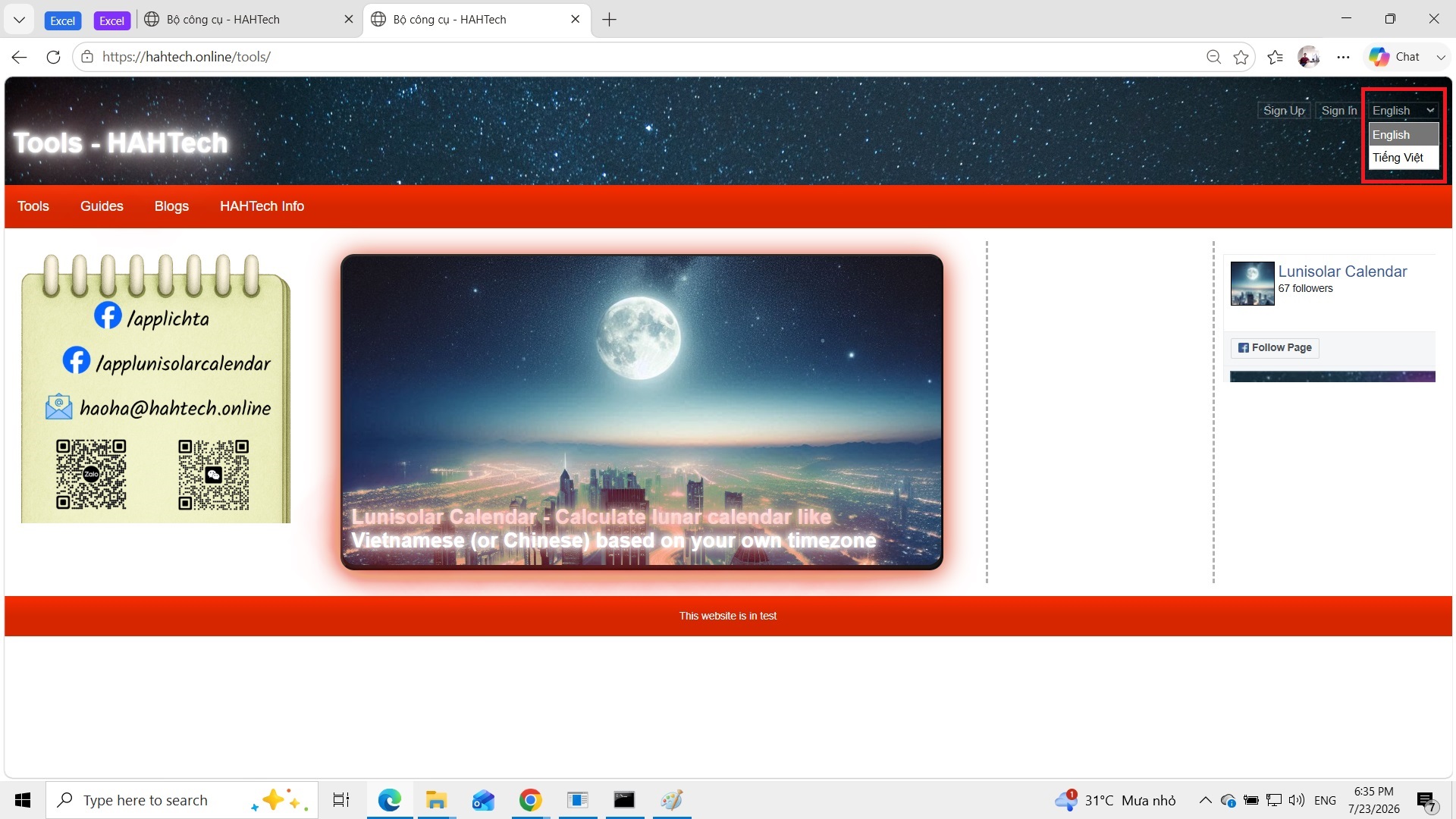
Users can always change the language version of this website, by clicking the selector at the top right corner and choose between available options.
How to sign up
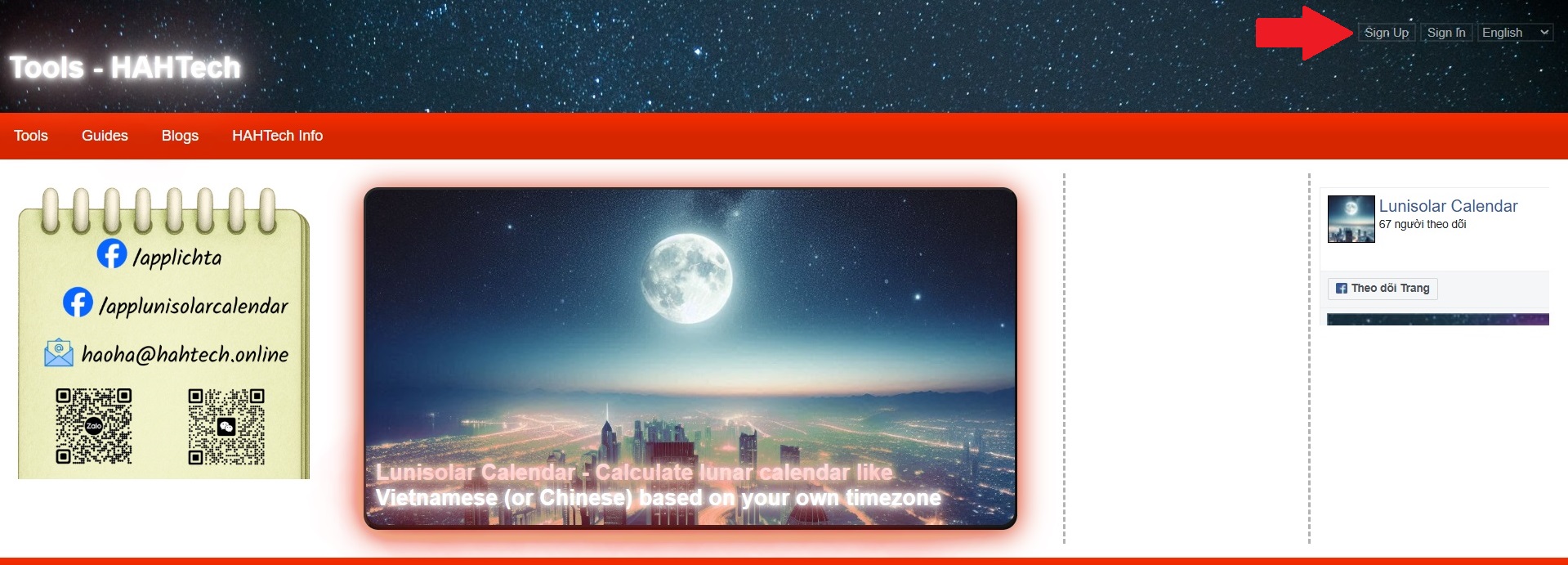
When hahtech.online is officially launched, users can click the "Sign Up" button at the top right corner to create a new account.
But now when the website is in the test phase, users shall contact the email haoha@hahtech.online and supply an email address to create account. HAHTech will reply with a initiated password for that email, and users shall change the password as guided here right after signing the first time.
How to sign in
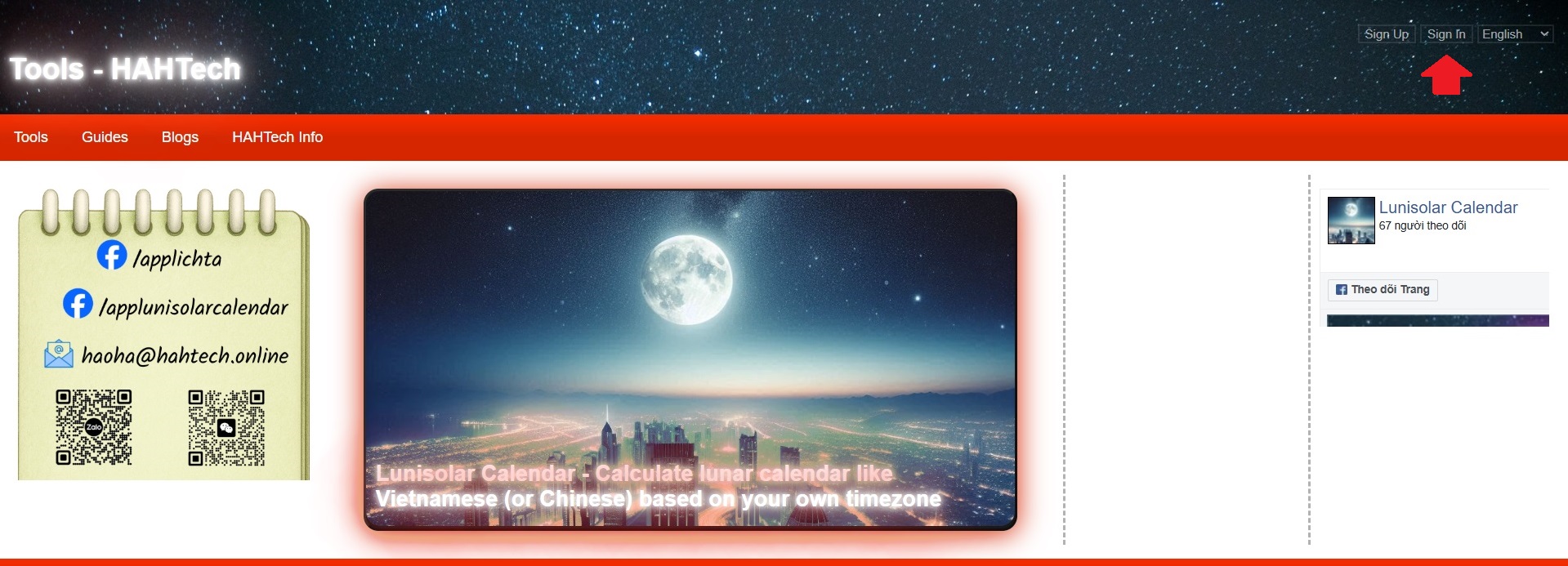
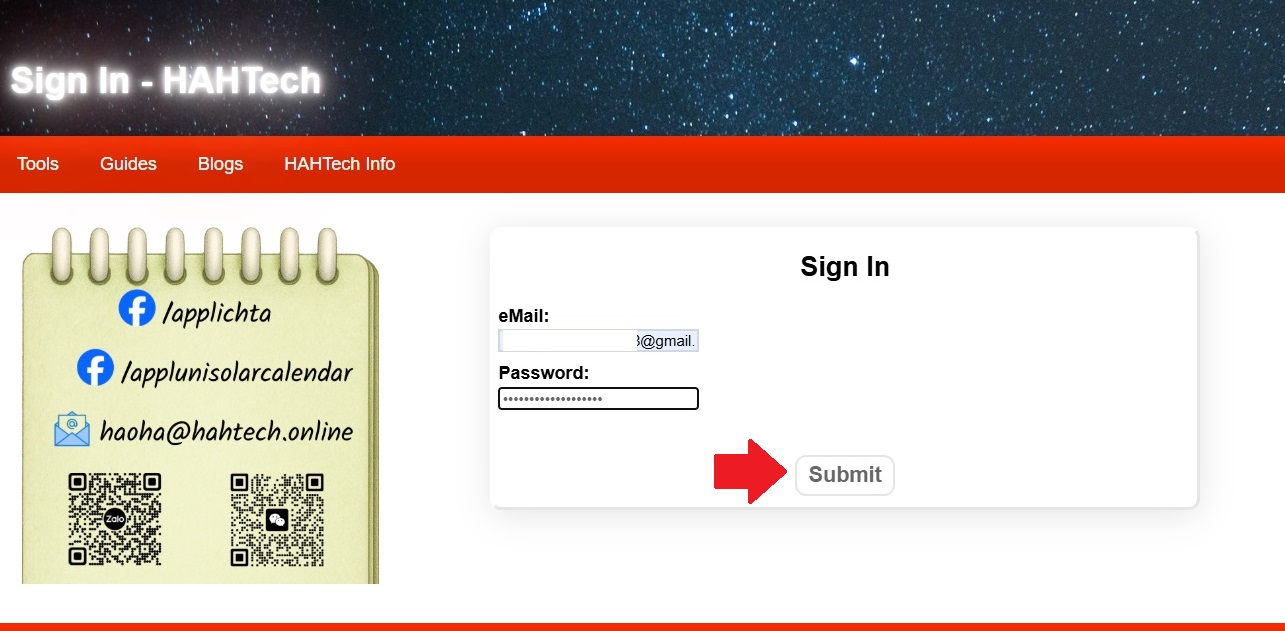
Step 1: Users click the "Sign In" button at the top right corner, or directly access hahtech.online/sign-in.
Step 2: Input the email address and password which was signed up successfully before, and click the "Submit" button.
How to navigate in "Settings"
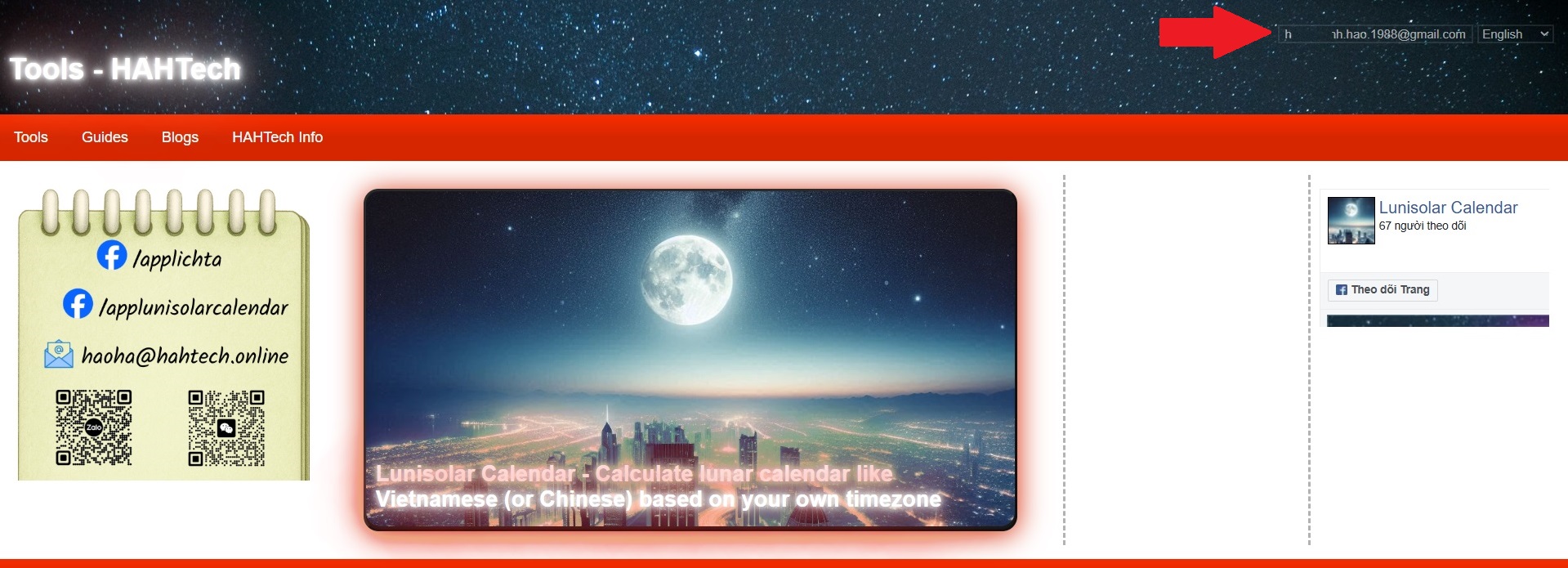
Users can go to the "Settings" page by clicking the email address displayed at the top right corner (after signing in successfully), or directly access hahtech.online/settings
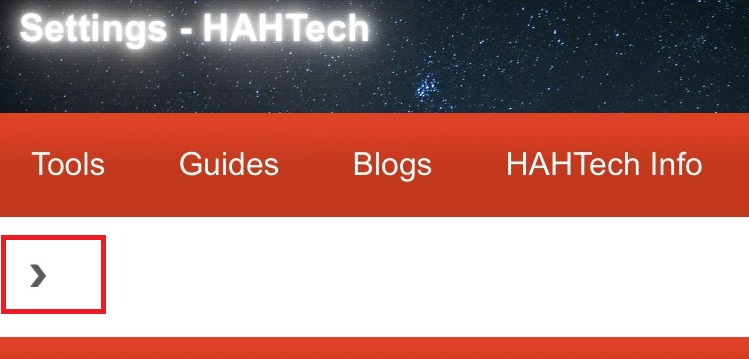
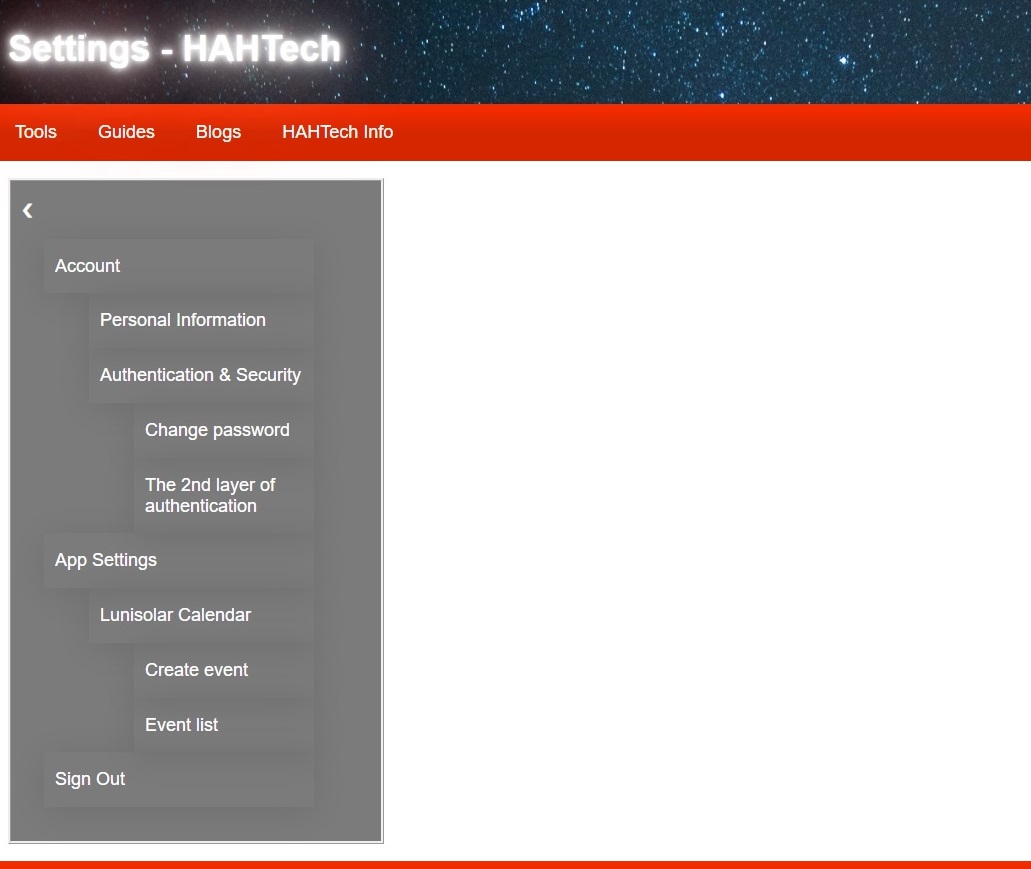
Now users have a vertical settings menu at the left side. With mobile browsers' interface, the settings menu will not display by default and users shall open it by clicking the small arrow at the top left corner below the main menu.
How to change password
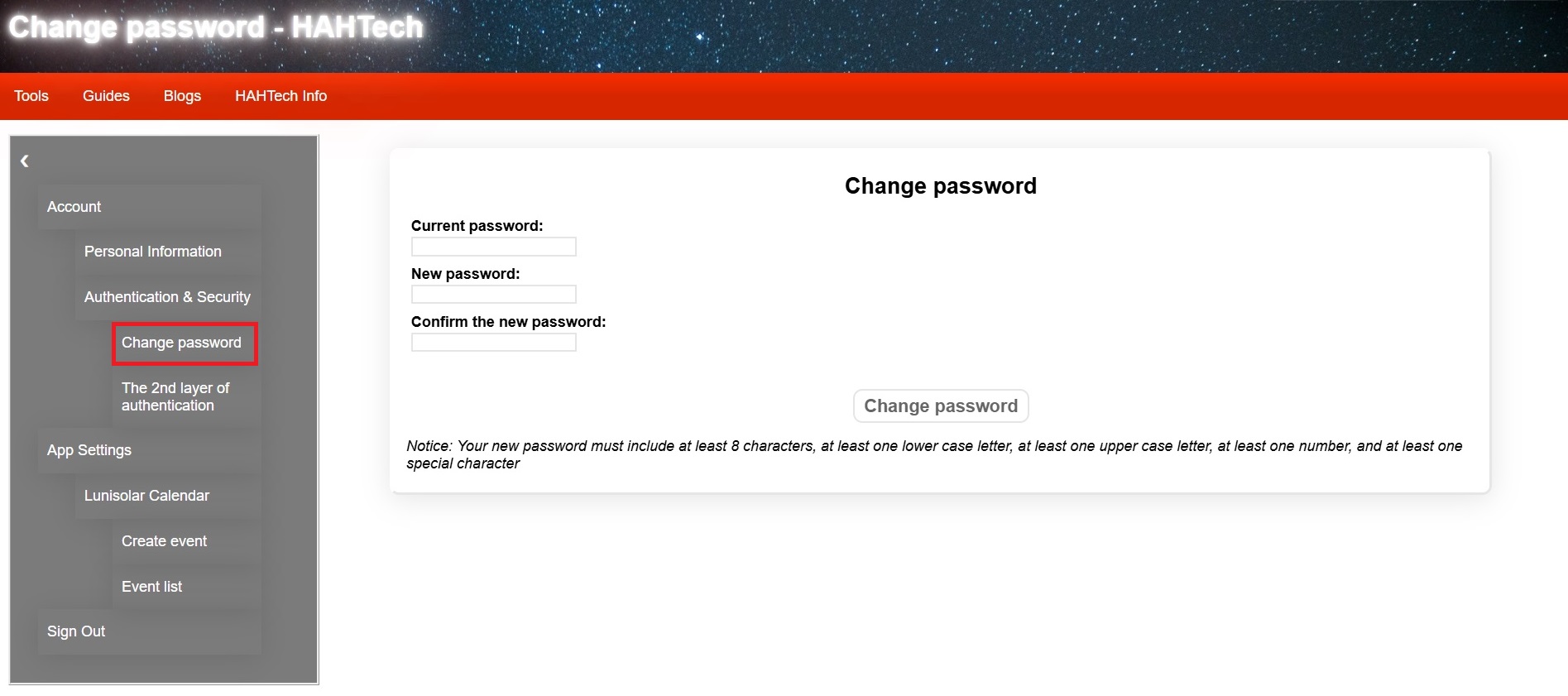
Step 1: Users go to the "Settings" page as guided here and choose "Change password" in the settings menu (in the "Authentication & Security" category specifically), or directly access hahtech.online/change-password. HAHTech will require users to verify the OTP sent to users' email for this action.
Step 2: Input the current password, and then input the new password twice, then clicking the "Change password" button.
Notice: Password must include at least 8 characters, at least one lower case letter, at least one upper case letter, at least one number, and at least one special character.
How to sign out
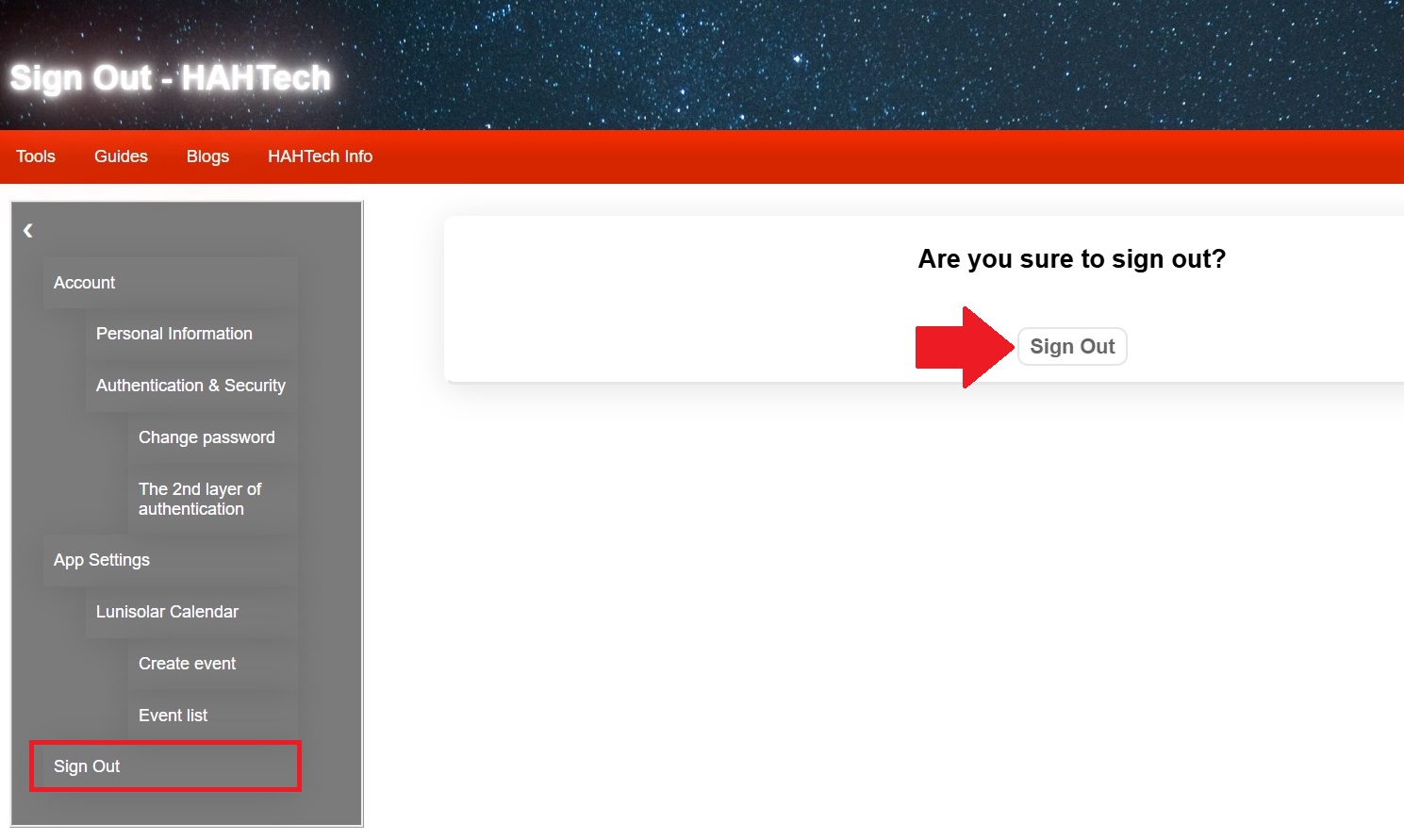
Step 1: Users go to the "Settings" page as guided here and choose "Sign Out" in the settings menu, or directly access hahtech.online/sign-out.
Step 2: Click the "Sign Out" button.